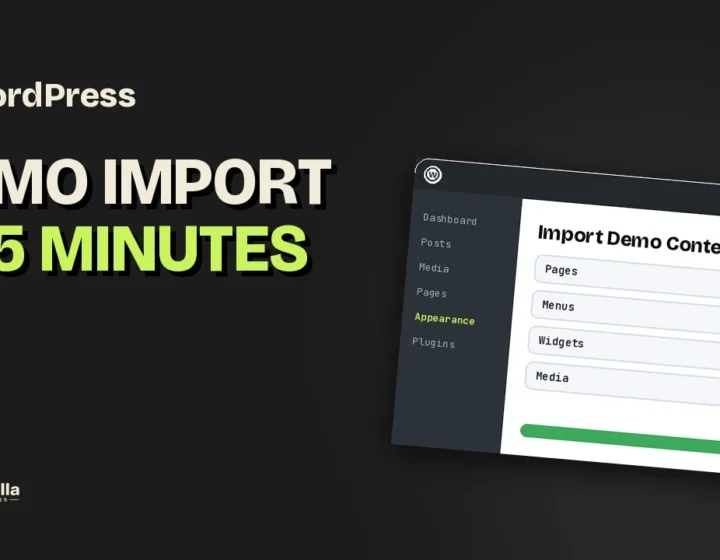
How to Make a Honey Shop Website | Honey Shop WordPress Theme
Learn how to make a honey shop website in WordPress and WooCommerce in minutes with the SWP Honey Shop Pro theme: install, one-click demo import, product tabs, coupon offers and live Customizer edits. No coding needed.
Want to learn how to make a honey shop website in WordPress? In this step-by-step video tutorial, we build a beautiful online honey shop with WordPress and WooCommerce in just a few minutes using the SWP Honey Shop Pro theme from ScintillaWPThemes. No coding and no page builder: just install, import and customize.
It is ideal for beekeepers, apiaries, honey farms, raw honey brands and organic food stores that want a ready-made honey shop website template with a real online store.
Video Chapters
0:00 – Intro
0:15 – What you’ll build
0:47 – Agency cost vs theme
1:24 – Step 1: Install the theme
1:40 – Step 2: Activate your license
2:03 – Step 3: Install required plugins
2:30 – Step 4: One-click demo import
2:54 – Honey shop homepage tour
3:44 – Lead-capture popup
4:02 – Step 5: Customizer panels & section order
4:34 – Edit the hero section
4:53 – Colours & typography
5:31 – Logo, contact info & popup
5:57 – Products & seasonal offer sections
6:15 – Mobile preview & publish
6:29 – WooCommerce shop, product & cart pages
7:04 – Services, recipes & inner pages
7:28 – Recap & get SWP Honey Shop Pro
What You’ll Build
The demo gives you a complete honey shop website, ready with a single click:
A warm, golden hero section with a trust strip
A WooCommerce product grid with category tabs such as Best Seller, Raw Honey and Gift Sets
A seasonal gift offer with a one-click copy coupon code
A honey variety guide with a light to dark colour scale
“Why our honey” benefits and a four-step “from hive to jar” story
Services such as hive tours and beekeeping classes, each with its own booking page
Recipes, a customer reviews carousel, a wholesale section, FAQs, an Instagram gallery and a newsletter sign-up
A full WooCommerce store with shop, product, cart and checkout pages styled to match
A lead-capture popup offering 10% off the first jar
Agency Cost vs Honey Shop Theme
Current pricing guides put a small WooCommerce shop built by a web design agency at around $3,000 to $15,000 or more, with 4 to 6 weeks of work. With SWP Honey Shop Pro you get the full design, every shop page and one-click demo content for a one-time price of $33, and you can launch the same day. You will still need your own domain and hosting either way.
How to Make a Honey Shop Website: Step by Step
Step 1: Install the Theme
In your WordPress dashboard go to Appearance › Themes › Add New Theme and click Upload Theme. Choose the swp-honey-shop-pro.zip file from your purchase, click Install Now, then click Activate.
Step 2: Activate Your License
You land on the SWP Import screen, with the license box on the left and a Server Readiness panel on the right. Paste the license key from your purchase email and click Activate. When the heading changes to “Theme License is Activated”, click Next to open the four-step setup wizard.
Step 3: Install the Required Plugins
Click Start Now, then Install Plugins. The wizard installs and activates three free plugins: WooCommerce (your online store), Contact Form 7 (booking and contact forms) and Kirki Customizer Framework (theme options).
Step 4: One-Click Demo Import
Click Import Demo. In a few seconds it sets up your pages, eight WooCommerce products with reviews and coupons, six services, recipes, contact forms, menus and all of the Customizer settings.
Step 5: Customize Your Honey Shop
Go to Appearance › Customize. All options live in clear SWP panels: Colors & Typography, Contact Info & Forms, Header, Page Banner, Footer, Popup, Shop, Services, Blog & Recipes, Speed & Performance, and a Templates panel for each page.
Reorder sections: in SWP Templates › Homepage › Reorder Sections, drag sections into any order or hide them with the eye icon.
Hero section: edit the heading, intro text and both buttons. Wrap words in <em> tags to show them in the elegant serif italic accent.
Colours: 14 named colours, from text and olive to honey, cream and footer. One change updates every button, star and accent, including the product cards.
Typography & layout: heading and body fonts, font size, hero title size, container width and card corner radius.
Logo & contact info: upload a logo or edit the three-part text wordmark, and enter your phone, email, address, opening hours and map once to use them everywhere.
Popup & shop banner: change the popup label, heading, text and image, and the shop banner heading, intro and image.
Products & offers: set products per tab, product order and filter tabs, and update the gift offer heading, coupon code, note and button for each promotion.
Mobile preview: check tablet and phone views, then click Publish.
Your WooCommerce Honey Store
The demo includes eight ready-made products that you manage from the WooCommerce Products screen. The shop page has a styled banner, category filter pills and sorting. Each product page shows a gallery, rating, price, add to cart button, trust icons, description, additional information and review tabs, plus related products. The cart supports coupons and has a clear Proceed to Checkout button. Connect a payment method such as Stripe or PayPal and you are ready to take orders.
Services, Recipes and Inner Pages
A Services post type is ready for hive tours, beekeeping classes, tastings, gift jars and wholesale supply, and each service gets its own page with a Contact Form 7 booking form. You also get an About page, a Recipes blog, a FAQ page and a Contact page with a message form and map. Everything is imported and fully editable.
Frequently Asked Questions
How do I make a honey shop website in WordPress?
Install the SWP Honey Shop Pro theme from Appearance › Themes, activate your license, let the setup wizard install the required plugins, then run the one-click demo import. You get a complete honey shop website with a WooCommerce store in a few minutes.
Do I need coding skills or a page builder?
No. Everything is edited from the WordPress Customizer with a live preview, including colours, fonts, homepage sections, products, offers and the popup.
How much does it cost to build a honey shop website?
An agency typically charges around $3,000 to $15,000 or more and 4 to 6 weeks for a small WooCommerce store. SWP Honey Shop Pro costs a one-time $33 and you can launch the same day. You still need your own domain and hosting.
Which plugins does the honey shop theme need?
Three free plugins: WooCommerce for the online store, Contact Form 7 for booking and contact forms, and Kirki Customizer Framework for the theme options. The setup wizard installs and activates all three for you.
Can I sell honey online and take payments?
Yes. The theme includes a fully styled WooCommerce store with shop, product, cart and checkout pages. Connect a payment method such as Stripe or PayPal in WooCommerce and you are ready to take orders.
Can I offer hive tours or beekeeping classes?
Yes. The theme adds a Services post type for hive tours, beekeeping classes, tastings, gift jars and wholesale supply. Each service gets its own page with a booking form powered by Contact Form 7.
Get SWP Honey Shop Pro
Skip the agency bill and weeks of waiting. Get SWP Honey Shop WordPress Theme at ScintillaWPThemes for a one-time $33 and get your honey shop online today.
Key takeaways
Build a complete honey shop website with WordPress and WooCommerce in minutes, with no coding or page builder
Install the theme, activate your license and set up WooCommerce, Contact Form 7 and Kirki with the setup wizard
One-click demo import adds 8 products, 6 services, recipes, forms, menus and all settings
Edit every homepage section, colour and font live in the WordPress Customizer
Sell online with styled shop, product, cart and checkout pages plus coupon offers
Grow your email list with the built-in 10% off lead-capture popup
A one-time $33 theme instead of a $3,000 to $15,000 agency build
Transcript
Read the full transcript
[0:00] Intro
Hi there, and welcome! In this tutorial, I'll show you how to build a beautiful online honey shop with WordPress and WooCommerce in just a few minutes, using the SWP Honey Shop Pro theme from ScintillaWPThemes. No coding and no page builder. Just install, import and customize.
[0:15] What you'll build
Here's the honey shop we're going to build today: a warm, golden hero section, a product grid with category tabs, a seasonal gift offer with a coupon code, a honey variety guide, a hive-to-jar story, services, recipes, customer reviews, wholesale, FAQs, an Instagram gallery and a newsletter.
And behind it, a complete WooCommerce store, with shop, product, cart and checkout pages, all styled to match.
[0:47] Agency cost vs theme
Before we start, let's talk about cost. If you hire a web design agency to build an online store like this, current pricing guides put a small WooCommerce shop at around $3,000 to $15,000 or more, and four to six weeks of work.
With SWP Honey Shop Pro, you get the full design, every shop page and one-click demo content for a one-time price of just $33. And you can launch the same day. You'll still need your own domain and hosting either way, but the design and build cost drops from thousands of dollars to about the price of a few jars of honey.
[1:24] Step 1: Install the theme
Let's install the theme. From your WordPress dashboard, go to Appearance, then Themes, and click Add New Theme. Click Upload Theme at the top. Click Choose File and select the swp-honey-shop-pro.zip file from your purchase. Then click Install Now. When WordPress says "Theme installed successfully", click Activate.
[1:40] Step 2: Activate your license
You'll land on the SWP Import screen. On the left is the license box, and on the right a Server Readiness panel that checks your hosting settings. Paste your license key from the purchase email into the field and click Activate. The heading changes to "Theme License is Activated".
Now click Next to open the setup wizard. The setup wizard has four steps: Introduction, Install Plugins, Import Demo and All Done.
[2:03] Step 3: Install required plugins
Click Start Now. The theme needs three free plugins: Contact Form 7 for your booking and contact forms, Kirki Customizer Framework for the theme options, and WooCommerce, which powers your online store. Click Install Plugins, and the wizard installs and activates all three for you, one after another.
[2:30] Step 4: One-click demo import
Now for the magic part. The demo import sets up your pages, eight WooCommerce products with reviews and coupons, six services, recipes, contact forms, menus and all of the Customizer settings. Click Import Demo and wait a few seconds. Done! Your demo content has been imported successfully. And here's your new honey shop.
[2:54] Honey shop homepage tour
Let's scroll through it. At the top, a free shipping bar and a clean header with search, cart and a Shop Now button. Then a soft gradient hero with a pouring honey photo, and a trust strip below it.
Next, Discover Our Honey: real WooCommerce products with ratings, prices and add to cart buttons, filtered by tabs like Best Seller, Raw Honey and Gift Sets. Then a seasonal gift offer with a one-click copy coupon code, and a honey varieties guide with a light to dark colour scale.
Why Our Honey, with key benefits and a stat card. From Hive to Jar, a four-step process. Then your services, like hive tours and beekeeping classes, each with its own booking page. Recipes from the hive, a customer reviews carousel, a wholesale section for cafes and shops, a FAQ accordion, an Instagram gallery, a newsletter sign-up, and a full footer with secure checkout badges.
[3:44] Lead-capture popup
The theme also includes a lead-capture popup. When a visitor scrolls halfway down the page, it offers 10% off their first jar in exchange for an email address. A simple way to grow your mailing list and turn visitors into customers.
[4:02] Step 5: Customizer panels & section order
Now let's make it yours. Go to Appearance, then Customize. All of the theme options live in clear SWP panels: Colors & Typography, Contact Info & Forms, Header, Page Banner, Footer, Popup, Shop, Services, Blog & Recipes, Speed & Performance, and a Templates panel for each page.
Open SWP Templates, Homepage. Every homepage section has its own settings. And in Reorder Sections, you can drag sections into any order, or hide the ones you don't need with the eye icon.
[4:34] Edit the hero section
Open the Hero section. You can show or hide it, and edit the heading, the intro text and both buttons. Wrap any words in em tags, and they become the elegant serif italic accent. Let's change the heading to "Pure raw honey, straight from our hives." The live preview updates instantly, before you publish anything.
[4:53] Colours & typography
To change the look of the entire site, open SWP Theme Colors & Typography, then Color Palette. There are fourteen named colours, from text and olive to honey, cream and footer. Watch what happens when I switch the honey colours to lavender. Every button, star and accent across the site updates at once, including the product cards. Perfect if your brand has its own colours.
I'll switch it back to golden honey. In Typography & Layout, choose your heading and body fonts, font size, hero title size, container width and the corner radius of your cards.
[5:31] Logo, contact info & popup
In SWP Header, Logo & Wordmark, upload your own logo or edit the three-part text wordmark. In Contact Info & Forms, enter your phone number, email, address, opening hours and Google Map just once, and the theme uses them everywhere.
And in Popup Content, you can change the popup label, heading, text and image. In SWP Shop, you can edit the shop banner heading, intro text and image.
[5:57] Products & seasonal offer sections
Back in the homepage templates, the Products section lets you set the heading, how many products show per tab, the product order and the filter tabs. And in Gift & Seasonal Offer, update the heading, the coupon code, the offer note and the button whenever you run a new promotion.
[6:15] Mobile preview & publish
Use the device buttons at the bottom to preview your shop on tablets and phones. The design is fully responsive. When you're happy, click Publish, and your changes go live.
[6:29] WooCommerce shop, product & cart pages
Now let's look at the store itself. The demo gives you eight ready-made products, which you manage from the WooCommerce Products screen, just like any WooCommerce store. Your shop page has a styled banner, category filter pills and sorting.
Each product page shows a gallery, rating, price, add to cart, trust icons, and tabs for description, additional information and reviews, plus related products. The cart is styled to match too, with coupon support and a clear Proceed to Checkout button. Just connect a payment method like Stripe or PayPal in WooCommerce, and you're ready to take orders.
[7:04] Services, recipes & inner pages
The theme also adds a Services post type, perfect for hive tours, beekeeping classes, tastings, gift jars and wholesale supply. Each service gets its own page with a booking form, powered by Contact Form 7. You also get an About page, a Recipes blog, a FAQ page, and a Contact page with a message form and a map. All imported, and all editable.
[7:28] Recap & get SWP Honey Shop Pro
So let's recap. An agency could charge you thousands of dollars and take weeks to build a store like this. With SWP Honey Shop Pro, you get it all for just $33, and your honey shop can be online today.
Get SWP Honey Shop Pro at ScintillaWPThemes.com. If this tutorial helped, please like, subscribe and share it with a beekeeper friend. Thanks for watching!
A step-by-step real estate website design tutorial: build a professional realtor website in WordPress with SWP Realtor Pro. Property listings, agent profiles,…
Learn how to install a WordPress theme in about 5 minutes: upload the ZIP, activate your license, install the required plugins and…
Cannot find it
Tell us what to record next
If you are stuck on something and there is no video for it, say so. Most of these exist because somebody asked, and the written documentation covers everything in the meantime.